WARNING
This page is machine-translated by Gemini.
LLM / AI Integration
SheepWeave features deep integration with Large Language Models (LLMs) to streamline pre-translation drafts, MT post-editing, and automated QA.
AI requests are routed through the secure and lightweight companion app, SheepBobbin.
1. Installing SheepBobbin
SheepBobbin acts as the secure intermediary bridging SheepWeave with various LLM providers (OpenAI, Anthropic Claude, Google Gemini, Ollama, etc.).
Download and run SheepBobbin on your local PC or network. (For detailed setup, see the SheepBobbin Manual).
2. Setting Up Connection Password
Configure authentication in VS Code:
- Open Settings (
Ctrl + ,), search forsheepWeave.bobbinApiKey, and enter your API key/password. - Or configure it directly under the Settings tab in the SheepWeave panel.
3. Using the LLM Tab in SheepWeave (Alt + 5)
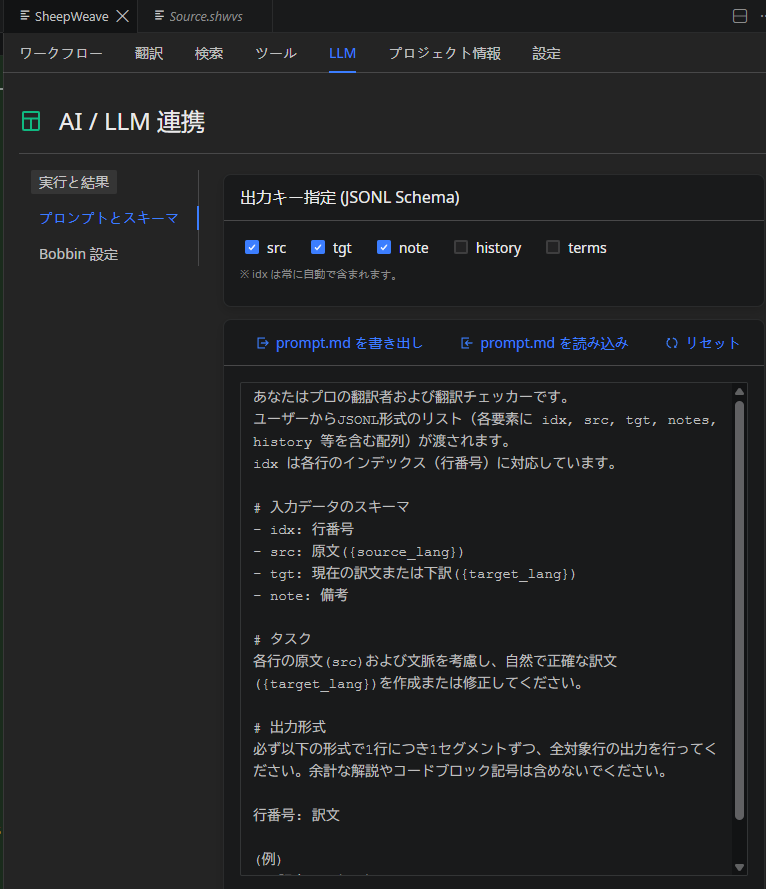
Customizing Prompts
- Tailor system prompts according to domain requirements (e.g., technical precision, creative adaptation).
- Export and import prompt presets as JSON files.
Shortcuts
Ctrl + Q: Loads the selected editor line into the LLM tab instantly.
Request Modes
- Standard Mode: Requests translation/QA for the active segment.
- Advanced Mode: Automatically injects previous confirmed segments and user-pinned post-editing references (PE Ref) into the prompt context to ensure stylistic consistency.
- Batch / Full-Document Requests: Automatically chunks the entire document and processes all segments sequentially with a real-time progress bar.