WARNING
This page is machine-translated by Gemini.
UI & Interface Overview
SheepWeave transforms VS Code into a high-productivity translation environment. The standard layout consists of Folder Tree on the left, Translation Editor in the center, and the SheepWeave Panel / AI Chat on the right.
VS Code Interface Elements
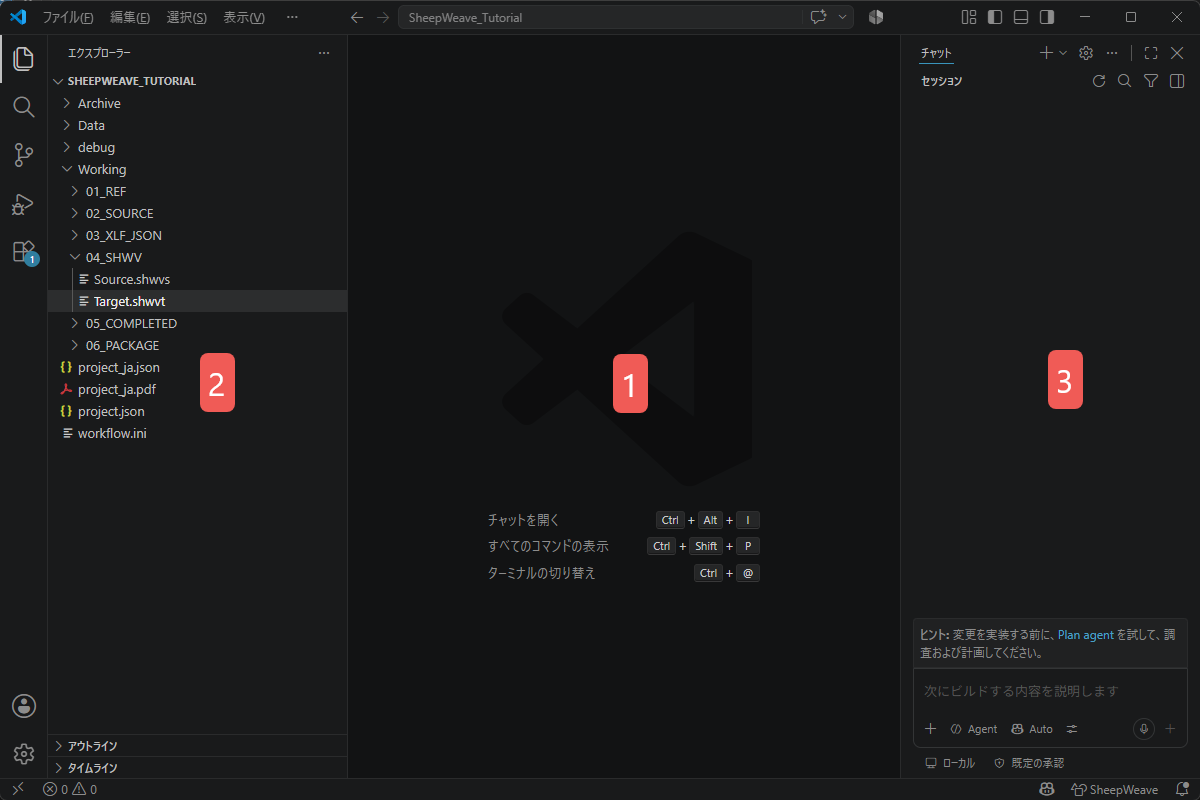
- Editor Screen (Center): Where you translate
Target.shwvt. Numbers and tags ({@0}) are color-highlighted. Confirm lines withCtrl + Enter(turns green). Line count is locked to prevent misalignments. - Folder Tree (Left): Quick access to project files,
05_COMPLETED, etc. Toggle withCtrl + B. - AI Chat (Right): Send text with
Ctrl + Lto standard chat orCtrl + Qto the SheepWeave LLM tab.
SheepWeave Panel Tabs (Alt + 1 to Alt + 7)
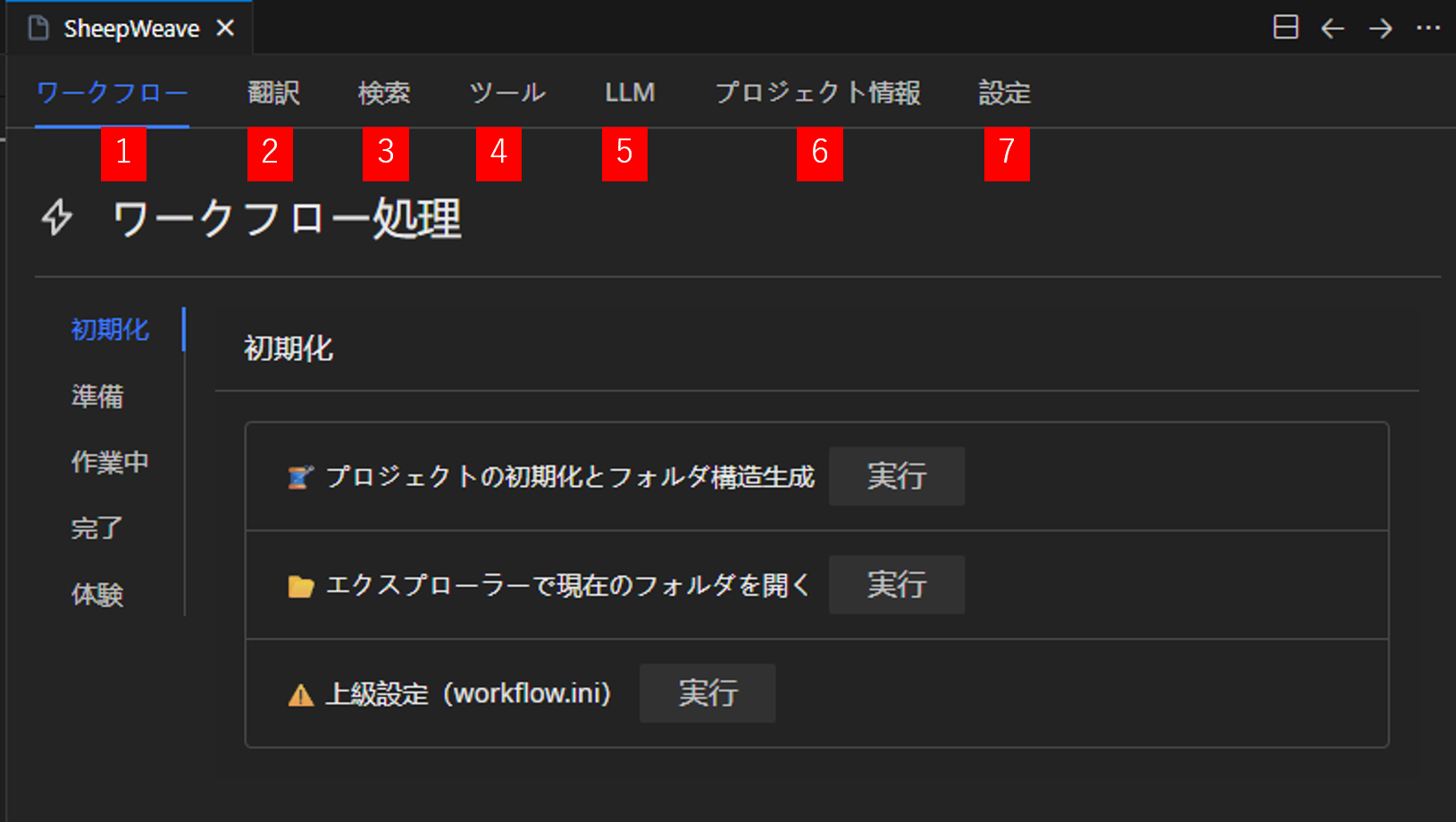
1. Workflow / Flow (Alt + 1)
Manages the end-to-end lifecycle: Initialization, Preparation, Active Working, and Completion.
2. Translate (Alt + 2)
Your main translation console. Shows active segment source, up to 5 fuzzy TM match suggestions (insert with Ctrl + Shift + 1..5), and termbase (TB) hits with Ctrl + Space auto-completion.
3. Search (Alt + 3)
- Concordance Search: Cross-search corpora from source or target text.
- Filter: Filter segments within the current active file with live in-table editing.
4. Tools (Alt + 4)
- Diff: Visual difference comparison between TM suggestions and your active translation.
5. LLM (Alt + 5)
Batch or single-segment translation, post-editing, and QA via SheepBobbin.
6. Information (Alt + 6)
Project statistics, character/word counts, and progress percentages.
7. Settings (Alt + 7)
Adjust font size, UI themes, and manage custom auto-completion phrases (phrase.jsonl).