Creating Bilingual Data with SheepGroom
Bilingual alignment in SheepGroom involves two simple stages:
- File Selection & Text Extraction
- Interactive Manual Adjustment
Because SheepGroom automatically pairs structural blocks upon extraction (such as sheets in Excel or slides and notes in PowerPoint), step 2 can often be simplified or skipped for high-level reviews or LLM batch checks.
1. File Selection & Text Extraction
Begin by choosing the corresponding source and target files:

- Select source and target files in corresponding pairs. Click "Add Pair Row" to process multiple document pairs simultaneously.
- Click [Expand to Alignment Editor].
- The interactive alignment editor will open.
Batch Loading
Prepare an Excel, CSV, or TSV file listing source files in Column A and target files in Column B to load multiple files at once via [Batch Load Files]. You can also resume work via [Load File/Text].
2. Interactive Manual Adjustment
Once expanded, the editor presents content organized into logical blocks:
| Source File | Block Unit | Special Notation |
|---|---|---|
| Word | Paragraphs / Tables / Text Boxes | None |
| Excel | Sheets / Text Boxes | None |
| PowerPoint | Slides / Notes | {|} Soft break within the same text box |
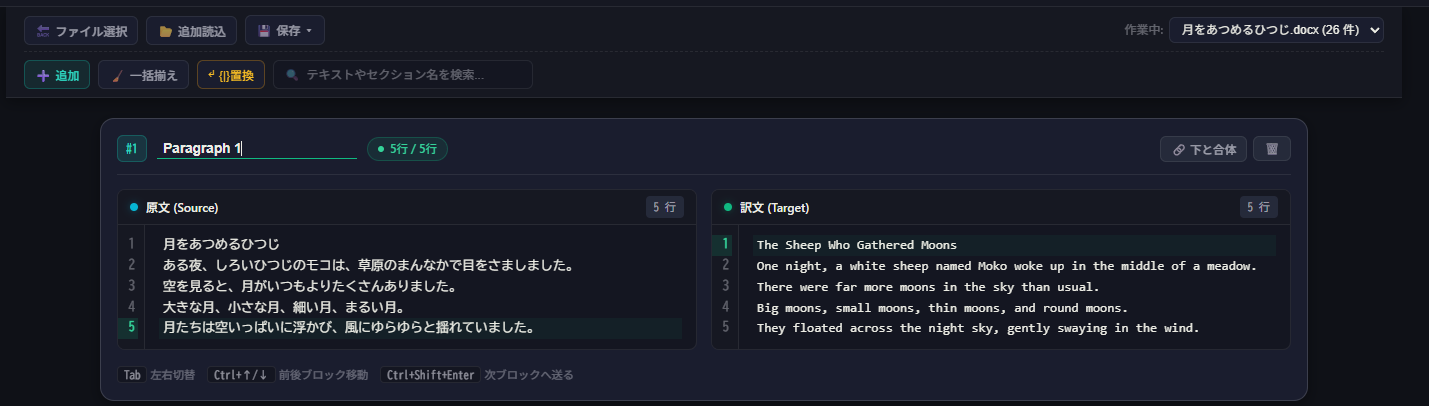
Within each block, corresponding lines in the source and target editors represent aligned pairs. Simply insert or remove line breaks with Enter / Backspace to adjust sentence alignment.
Toolbar Features
Header Toolbar (File Level)
| Button | Description |
|---|---|
| File Selection | Return to file selection screen (session state preserved). |
| Add Load | Append additional document pairs to the session. |
| Save | Export aligned data in TSV or Excel format. |
| Active File | Switch between loaded files. |
| Add Block | Insert an empty block below the current cursor position. |
| Align All | Automatically balance line counts across blocks with empty lines. |
{|} Replace | Convert soft text frame breaks into standard line breaks. |
| Search | Filter blocks by keyword search. |
Block Controls
| Button | Description |
|---|---|
| Merge Down | Merge current block with the subsequent block for both source and target. |
| Trash | Delete the block and its contents. |
Keyboard Shortcuts
| Shortcut | Function |
|---|---|
| Tab | Toggle focus between source and target editor panes. |
| Ctrl+↑ / ↓ | Navigate to previous / next block. |
| Ctrl+Shift+Enter | Split current block at cursor position. |