Automated LQA Voice & Video Processing with SheepBell
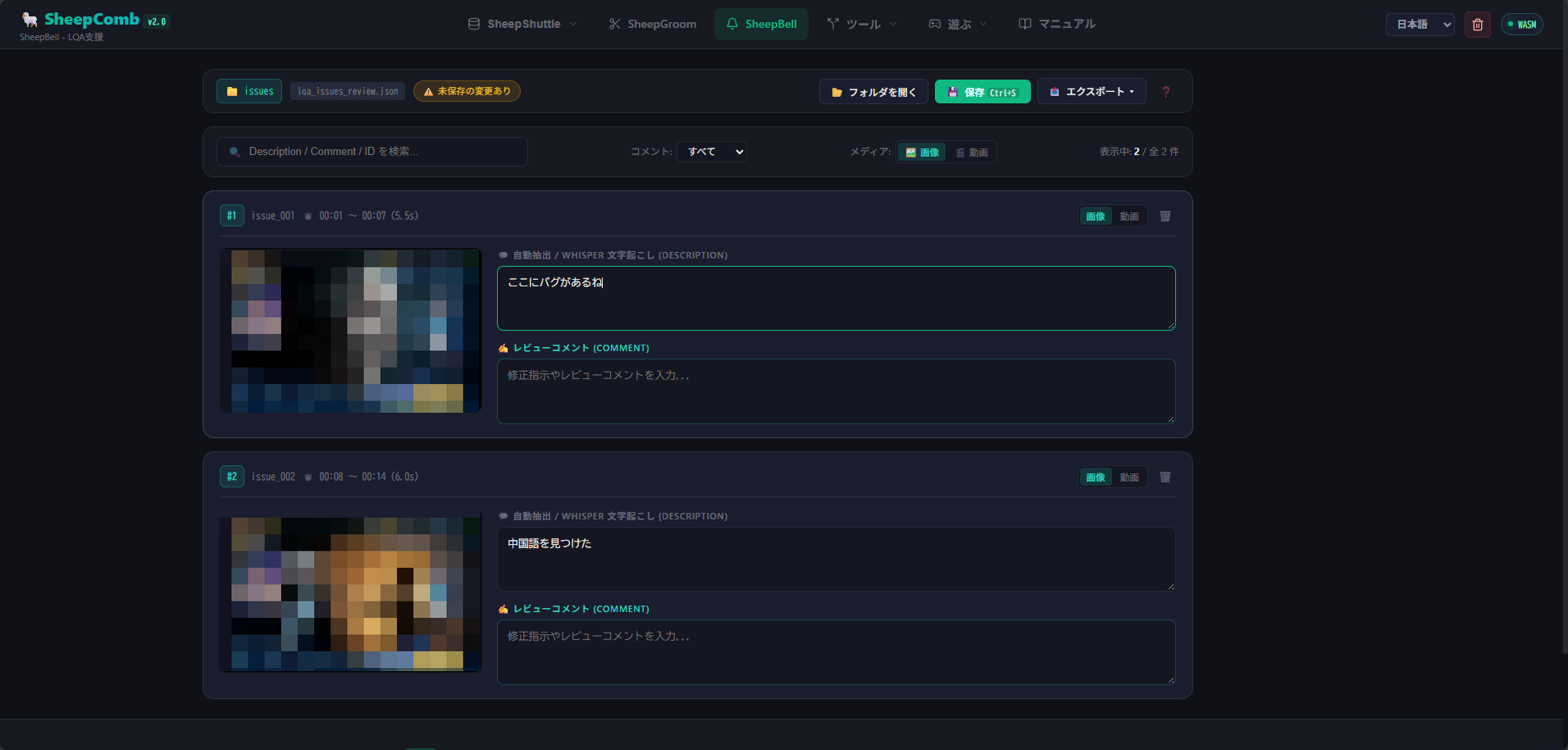
SheepBell automatically detects tester speech intervals (voice notes marking in-game bugs) from gameplay and LQA recordings, extracting synchronized video clips, snapshot images, AI transcriptions, and structured reports (CSV / JSON / Google Spreadsheets).
Output results can be opened directly in the web-based SheepBell Viewer within SheepComb to preview media, proofread transcriptions, add review comments, and export reports.
Overall Workflow
| Step | Summary | Primary Tools |
|---|---|---|
| 1. Recording Setup | Record gameplay audio and tester microphone on separate audio tracks. | OBS Studio, etc. |
| 2. Processing | Detect speech intervals, cut video clips, take snapshots, and transcribe audio. | Google Colab / Local UI |
| 3. Web Review & Proofing | Proofread transcripts, preview clips, and add issue comments in the web viewer. | SheepComb Web (/app) |
| 4. Report Export | Export structured bug reports to CSV, JSON, or Google Spreadsheets. | SheepComb / Google Drive |
1. Recording Setup (OBS Multi-Track Configuration)
SheepBell recommends recording the tester's voice and the game audio on separate audio tracks.
This prevents game sound effects and BGM from masking tester voice notes and avoids false detections from character voiceovers.
OBS Studio Configuration Steps
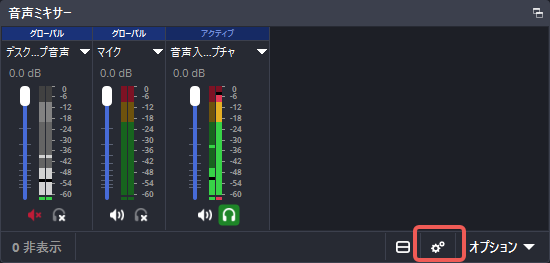
- In the Audio Mixer pane, click the gear icon and select Advanced Audio Properties.
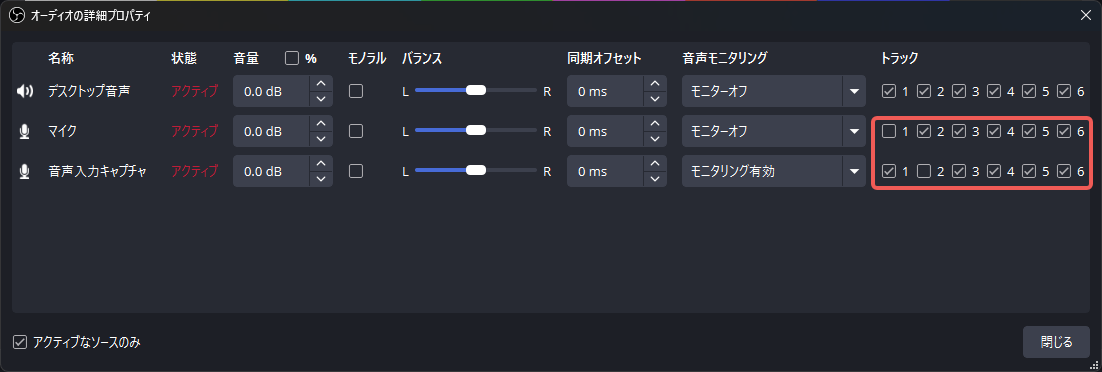
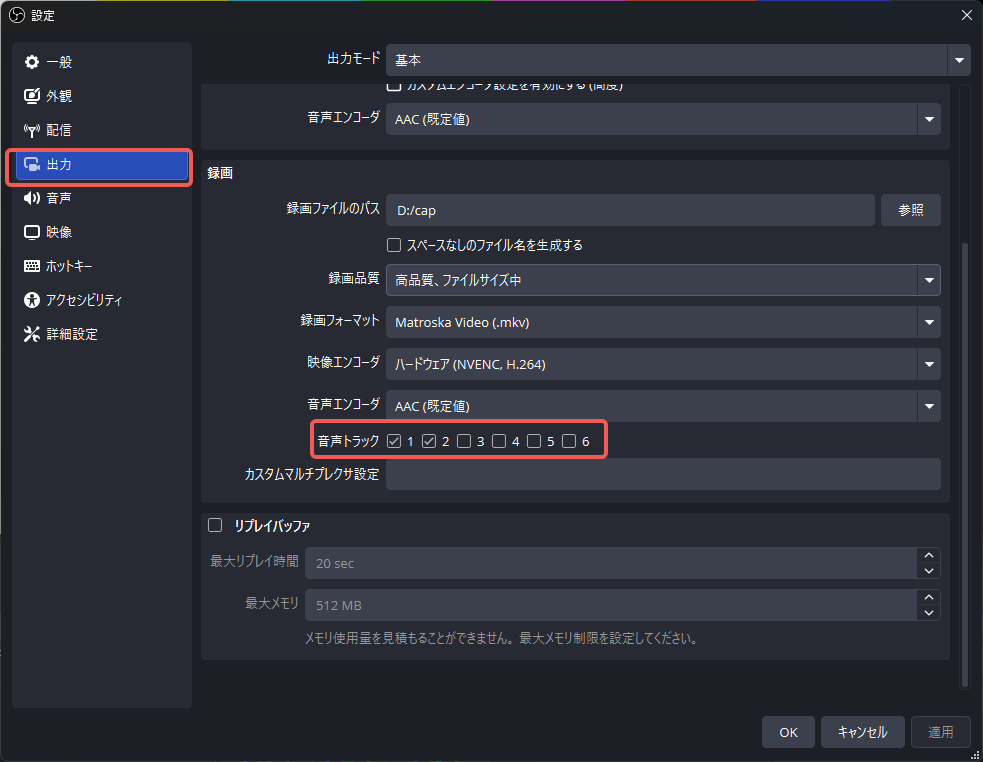
- Assign Mic Audio to Track 2 and Game Audio to Track 1, unchecking unused tracks.
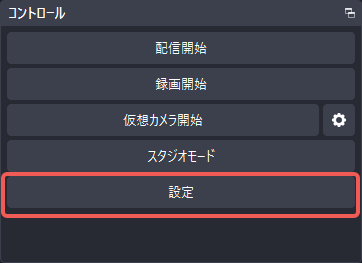
- Open Settings in the Controls pane.
- In the Output tab under Recording, ensure all active audio tracks (e.g., 1 and 2) are checked.
Pro Tip
Recording a brief spoken intro (e.g., "Oct 10, Stage 3 LQA starting now") makes track identification and test indexing effortless.
2. Running SheepBell
SheepBell runs on Google Colab (Recommended) or your Local PC.
☁️ Running on Google Colab (Free GPU Support)
- Open the provided
colab_sheepbell.ipynbnotebook in Google Colab (set runtime to T4 GPU). - Run Mount Google Drive to access input recordings and save deliverables.
- Run the installation and launch cells to start
app.py --share. - Open the generated
https://xxxx.gradio.livelink. - After processing, run the post-processing cell to save clips, images, and an auto-generated Google Spreadsheet to Drive.
💻 Running Locally (Windows / Mac / Linux)
uv sync
uv run python app.py
Open http://127.0.0.1:7860 in your browser.
3. UI Overview & Parameters
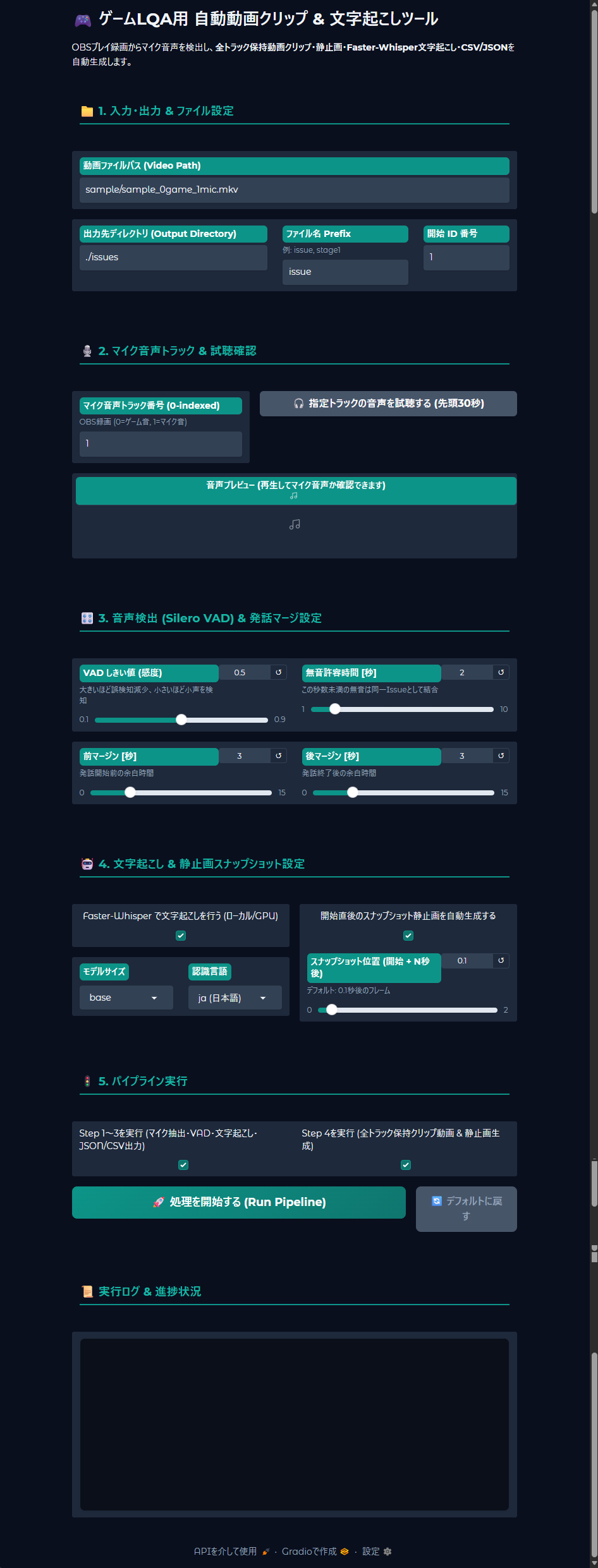
Key Parameters
| Parameter | Description | Default / Recommended |
|---|---|---|
| Video Path | Path to the target video file. | sample/... |
| Mic Track Index | 0-indexed track number for tester microphone (Track 2 = 1). | 1 |
| Game Track Index | 0-indexed track number for game audio (Track 1 = 0). | 0 |
| VAD Threshold | Speech detection sensitivity (Silero VAD). | 0.5 |
| Min Silence Duration | Maximum silence interval to merge adjacent utterances. | 2.0 s |
| Pre/Post Margin | Padding duration added before and after speech in clips. | 2.0 s |
| Whisper Language | Language for Faster-Whisper transcription (ja, en, zh, auto). | ja / en / zh |
| Snapshot Offset | Time offset from speech onset for snapshot image. | 0.1 s |
4. Generated Deliverables
issues/
├── lqa_issues.json         # Complete structured issue dataset
├── lqa_issues.csv          # Excel / Spreadsheet compatible CSV (UTF-8 BOM)
├── issue_001.mp4           # Multi-track video clip
├── issue_001.png           # Snapshot image
├── issue_002.mp4
├── issue_002.png
└── ...
5. Web Review & Report Editing
Open output files in the SheepBell Viewer:
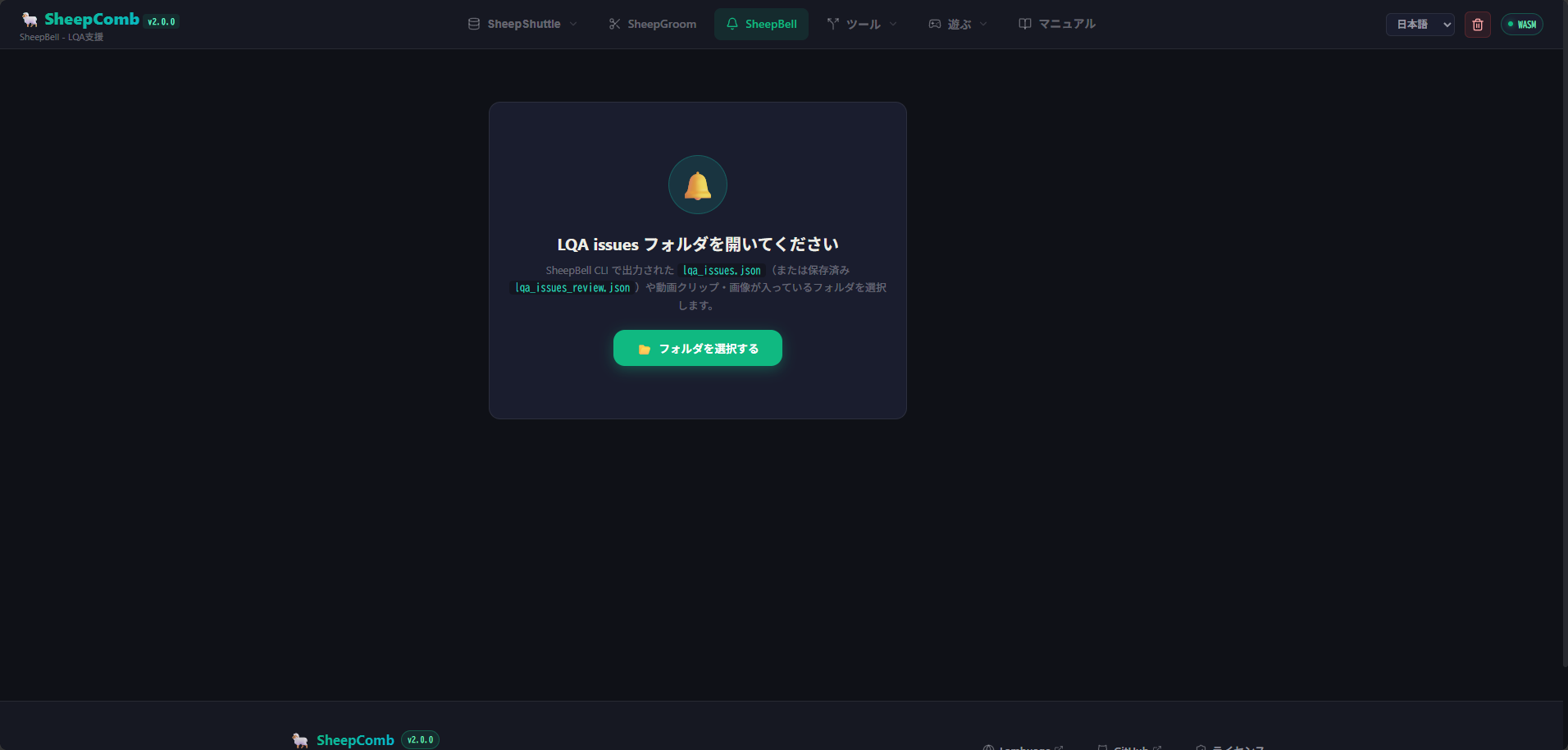
- Click Select Folder and choose the
issues/output directory. - Review synchronized video clips, snapshots, and transcriptions side by side.
- Proofread transcribed text and add reviewer comments or severity ratings.
- Export finalized CSV / JSON reports for bug trackers (Jira, Redmine, etc.).
(Session progress auto-saves periodically to lqa_issues_review.json and supports manual saving via Ctrl + S.)