WARNING
This page is machine-translated by Gemini.
Step-by-Step Guide
Step 1: Data Extraction (Extract Page)
Extract translation segment data from your target files.
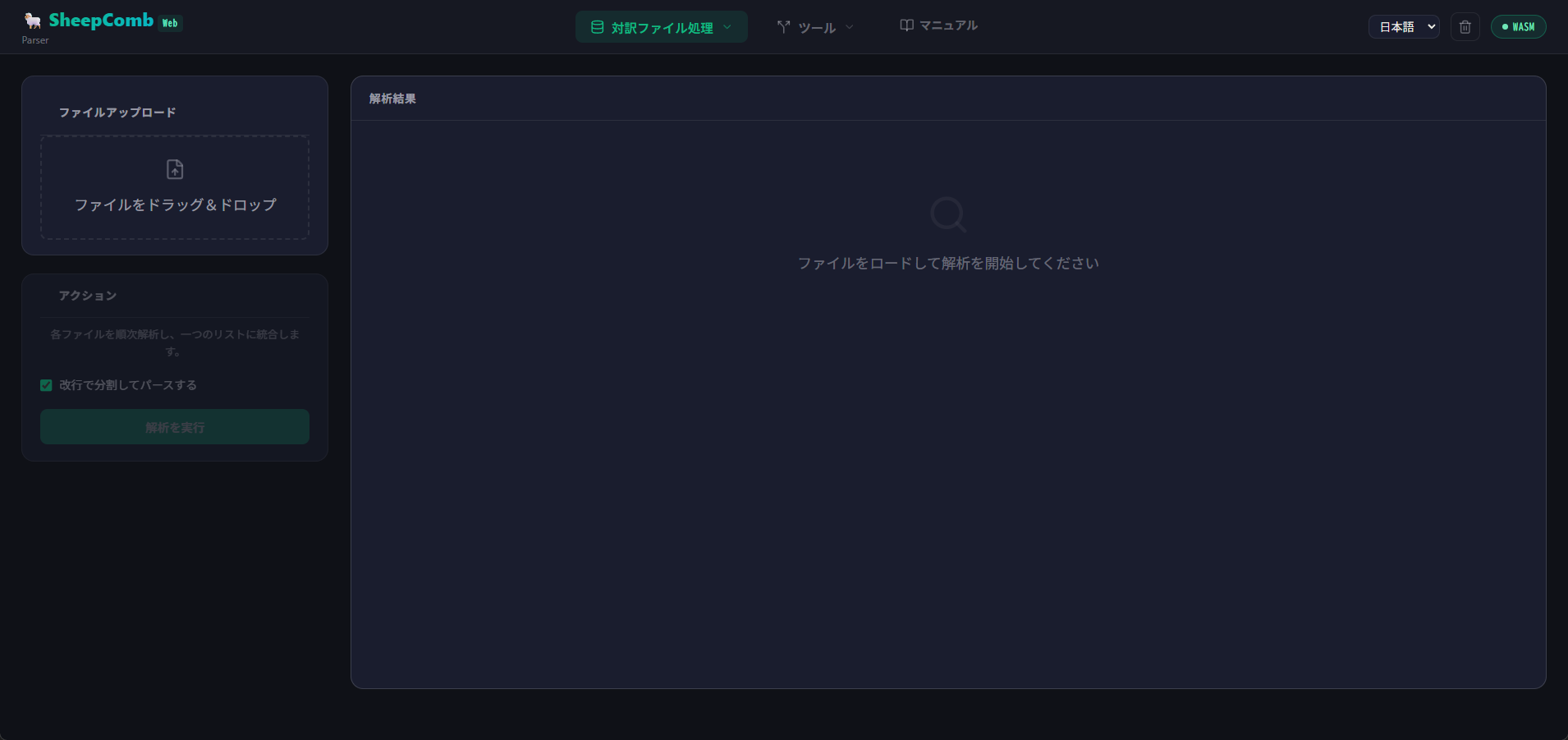
- Select "Extract" from the navigation menu.
- Drag and drop your file into the upload zone or click to select a file.
- Click the "Execute Parse" button.
TIP
If text inside Excel or XLIFF contains line breaks, they are split by default. Uncheck "Split by line break" above the parse button if you wish to preserve internal line breaks.
Supported File Formats
- XLIFF Variants:
.xliff,.xlf,.sdlxliff,.mxliff,.mqxliff - TM / TB:
.tmx,.tbx - Excel / CSV:
.xlsx(Col A: Source, Col B: Target, Col C+: Notes),.csv,.tsv - Others: Word bilingual tables, JSON / JSONL files
Character & Word Counts
Live character and word counts are displayed above the table. Click between "Chara" and "Word" to toggle view modes.
Downloading Extracted Data
Click the CSV or JSON button in the top right to download extracted data anytime.
Step 2: Filtering & Sampling (Filter / Sampling)
Once extracted, Filter and Sampling cards will appear.
Filters
Reduce unnecessary rows to lighten data size and optimize token consumption:
- Remove Duplicate Rows: Deletes identical source/target pairs after the first occurrence.
- Remove LOCKED Rows: Excludes segments marked as locked (from MXLIFF/MQXLIFF).
- Do Not Translate (DNT) Filter: Automatically detects and strips non-translatable text.
Sampling Evaluation
For quality QA checks on large datasets:
- Specify Target Character Count and an optional Seed Value for reproducible random sampling, then click Execute Sampling.
Step 3: Structuring (Structure Page)
Converts extracted data into a unified project format (ShWvData), compatible with SheepWeave.
- Select "Structure" from the menu.
- Add any additional bilingual files if needed.
- Enter Project Name, Source Language, and Target Language.
- Click "Execute Structure".
Step 4: TM & TB Matching (Analyze Page)
Matches your dataset against Translation Memories (.tmx, .csv) and Termbases (.tbx, .csv). Calculates Weighted Word Counts (WWC) and identifies matching phrases to serve as AI context.
Step 5: Data Chunking & Management (Manage Page)
Prepares data for AI consumption:
- Save/Load Project: Download full project as
.jsonor.csv. - Chunking for AI: Split data by file or by character count (e.g., 5,000 characters per chunk).
- JSONL Export/Import: Export clean
.jsonlfiles for AI pipelines or re-import completed AI results.
Step 6: AI Batch Requests (API Page)
Connects to the desktop app (SheepBobbin) to send automated translation or QA requests.
- Select "API" from the menu and enter your Connection Password.
- Click "Generate Chunks".
- Configure Processing Type (Translate, QA, or CUSTOM to selectively include
src,tgt,history,terms). - Enter or upload custom Prompt templates.
- Click "Process All Chunks" to execute batch requests sequentially.
- When complete, click "Export CSV" to download the finalized results.